
Overview
This guide explains how to check your current disk usage and request additional disk space for your WPCloud hosting plan. Each hosting account comes with 10 GB by default, and you can add more in 10 GB increments as needed.
Prerequisites
- Active WPCloud hosting account
- Access to cPanel
- Access to the billing/support portal
Checking Your Current Disk Usage
- Log in to cPanel and open Disk Usage.
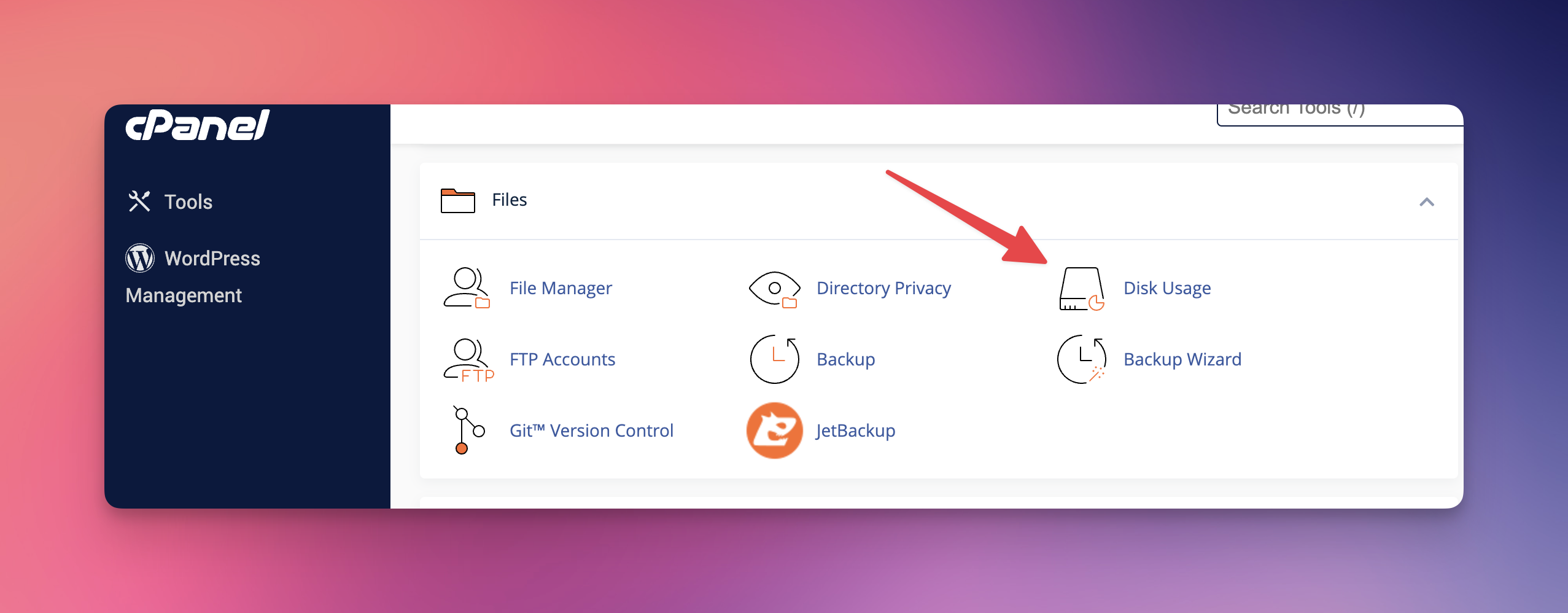
- On the cPanel dashboard, locate the Disk Usage widget.
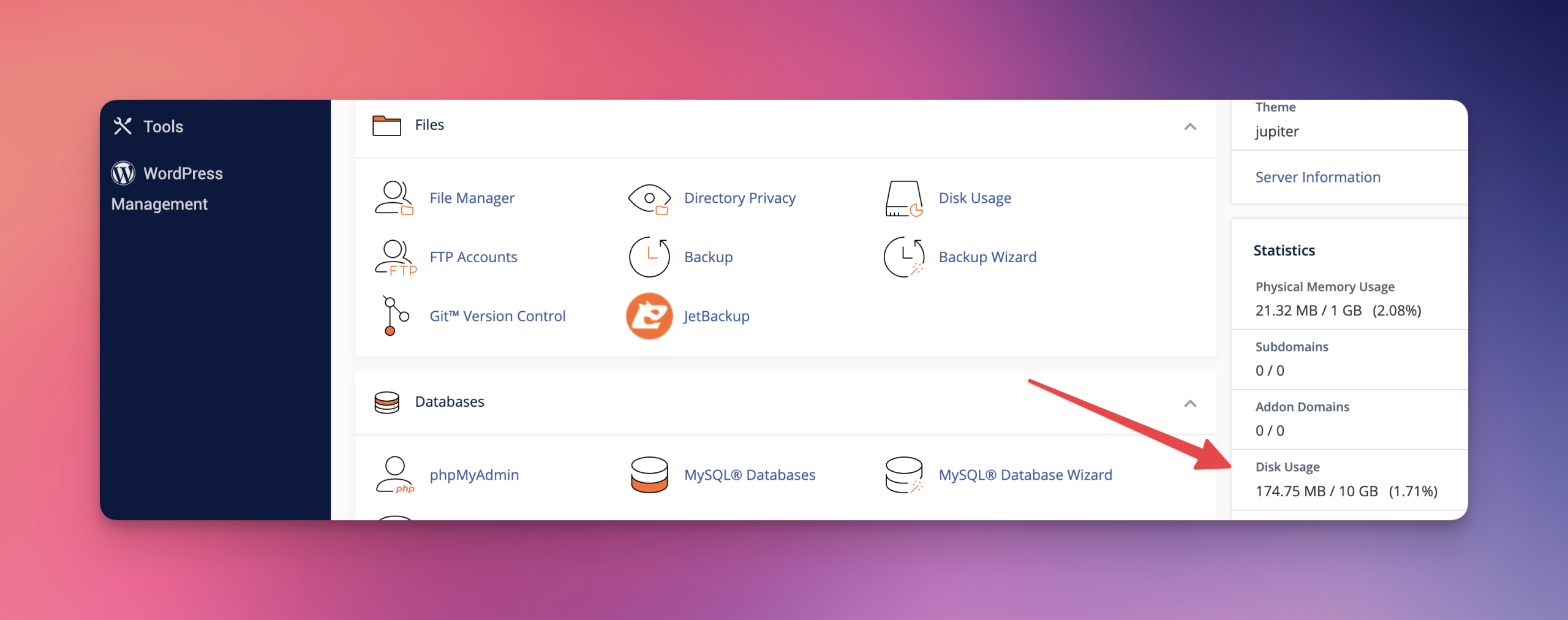
- Review your current usage:
- Total space allocated
- Space used
- Available space
- Percentage used
Requesting Additional Disk Space
- Submit a support ticket
- Go to support.wpcloud.ca → Submit a Ticket → Resource Management
- Specify how many 10 GB packs you’d like to add
- Review pricing
- $5.00 CAD per 10 GB per month
- Prorated for the remainder of your current billing cycle
- Confirmation & provisioning
- Our team processes requests in ~15 minutes
- You’ll receive an invoice for the add-on
- Space is added immediately upon payment
No downtime: Adding disk space is seamless and does not affect your live site.
Common Questions
Is there a limit to how much I can add?
No. You can add as many 10 GB packs as needed.
Can I remove extra space later?
Yes. Reductions take effect at the end of your billing cycle.
Is the added space instantly available?
Yes. It appears immediately after payment is processed.
Best Practices
- Monitor disk usage regularly
- Request extra space before reaching capacity
- Periodically remove unused backups, logs, or media
Troubleshooting
Disk still shows full after upgrade
- Clear browser cache and refresh cPanel; allow 5–10 minutes
New allocation not visible
- Log out of cPanel and back in; allow 5–10 minutes
Need Help?
- Support portal: support@wpcloud.ca or support.wpcloud.ca
- Availability: 24/7 with ~15-minute typical response time
Leave a Reply